
DEX
The native DEX on peaq is MachineX.Add peaq to your wallet
Most EVM wallets let you add a custom network. Refer to your wallet’s guide: Use these settings:- RPC Endpoint: https://quicknode3.peaq.xyz
- Chain ID: 3338
- Currency: PEAQ
- Block Explorer URL: https://peaq.subscan.io
Add custom tokens to your wallet
Depending on your wallet, you may need to add tokens on peaq manually as custom tokens. MetaMask’s guide on how to display tokens is one example. For PEAQ itself, always take the address from the official PEAQ Token Contracts page. For other tokens on peaq, use the peaq Token List, never a third-party aggregator, which can list impostor tokens. Important tokens on peaq:Bridge to peaq
Use the desktop applications, install the relevant wallet browser extension, and add peaq as a custom network in your wallet first.Stargate Bridge
Example: bridging USDT from Arbitrum to peaq with the MetaMask browser extension.Step 1
Go to stargate.finance/bridge and connect your wallet. You need some ETH on Arbitrum One to cover the bridging gas fee.Step 2
Select the token and the networks to bridge from and to. This example bridges 3 USDT from Arbitrum to peaq.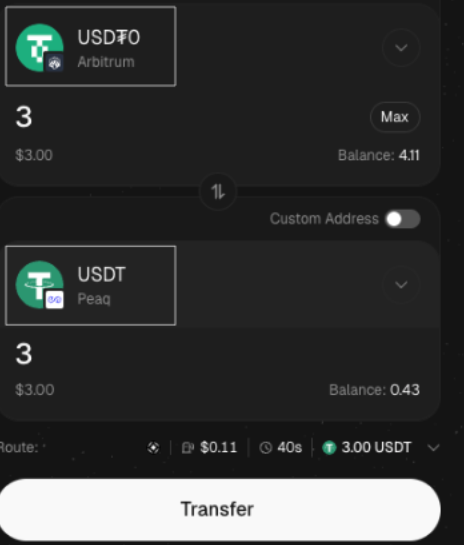
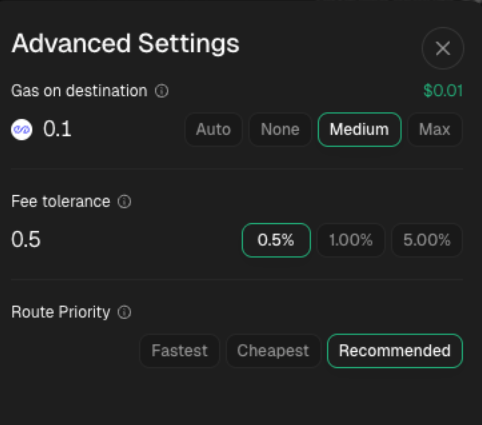
Advanced Settings and enable Gas on Destination. Choose Auto, Medium, or Max.
Step 3
On MetaMask, approve the spending cap request.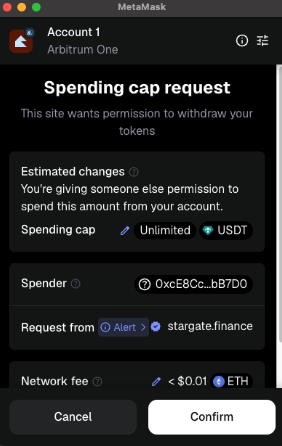
Step 4
On MetaMask, approve the transaction request.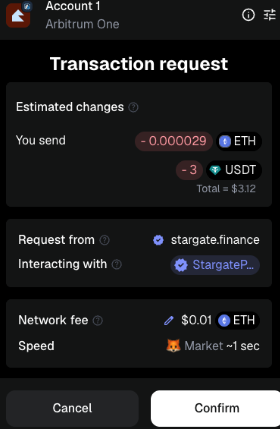
Step 5
Once the transaction is confirmed, a pop-up shows a link to the transaction.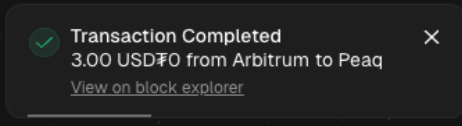
Step 6
Wait for LayerZero to finish bridging. You can follow the progress on the status bar.
Step 7
Bridging is complete when the green tick appears. MetaMask also logs the activity under the Activity tab on the Arbitrum One network.
Step 8
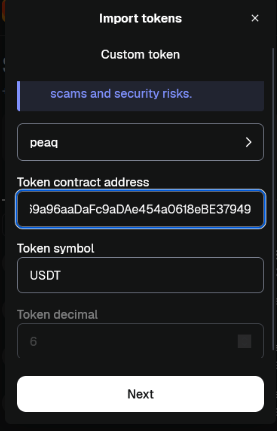
To show the bridged USDT balance in MetaMask, select peaq in your wallet’s list of custom networks. Click on Import Tokens → Custom Tokens, select peaq, and add the following:- Address:
0xf4D9235269a96aaDaFc9aDAe454a0618eBE37949 - Symbol:
USDT - Decimals:
6(if you cannot edit the decimals, update or reinstall your browser extension).