> ## Documentation Index
> Fetch the complete documentation index at: https://docs.peaq.xyz/llms.txt
> Use this file to discover all available pages before exploring further.
# Get test tokens
The following form can be used to receive 3 \$AGNG per day to a low funded **EVM** or **Substrate** wallet:
## Wallet Quick Start
In order to perform transactions on the blockchain you need to have native tokens to pay gas for the network fees.
Before a user can get the tokens, they must have a wallet for the faucet to know where to send them. Since peaq is a Substrate chain with the interoperability of EVM-style chains built in, you can either use:
* EVM H160 address: `0x48C9774C88736F7c169D2598278876727AFD1476`
* Substrate SS58 address: `5FEw7aWmqcnWDaMcwjKyGtJMjQfqYGxXmDWKVfcpnEPmUM3q`
### Create EVM Wallet
1. Go to the MetaMask wallet [extension page](https://chromewebstore.google.com/detail/metamask/nkbihfbeogaeaoehlefnkodbefgpgknn?hl=en)
2. Add extension
3. Create a new wallet
4. Add password for login on your connected device
5. Write down and store the mnemonic phrase
6. Complete reading the wallet on-boarding prompts
After successfully creating a new wallet you will have obtained an EVM address that the faucet can send tokens to.
### Add peaq to Wallet
After creating a MetaMask account you will need to add a custom network manually for it to appear in the wallet.
1. Open MetaMask and go to the network selector page
2. Click on `Add a custom network`
3. Input with the following information sourced from [Connecting to peaq](/peaqchain/build/getting-started/connecting-to-peaq). You can add the all networks in a similar fashion, just make sure to change the values for the relevant chain.
| Network | RPC URL | Chain Id | Currency symbol | Block Explorer |
| ------- | --------------------------------------------------------------------- | -------- | --------------- | ---------------------------------------------------------------------- |
| peaq | [https://quicknode1.peaq.xyz](https://quicknode1.peaq.xyz) | 3338 | PEAQ | [https://peaq.subscan.io/](https://peaq.subscan.io/) |
| agung | [https://wss-async-agung.peaq.xyz](https://wss-async-agung.peaq.xyz/) | 9990 | AGNG | [https://agung-testnet.subscan.io/](https://agung-testnet.subscan.io/) |
4. Click save and change to that network
5. PEAQ/AGNG appears as native token
## Create Substrate Wallet
1. Go to the polkadot.js wallet [extension page](https://polkadot.js.org/extension/)
2. Download for your browser
3. Click on the plus to create a new account
4. Safely store the mnemonic phrase, and continue
5. Allow for use on any chain
6. Create a name and password
### Substrate Wallet
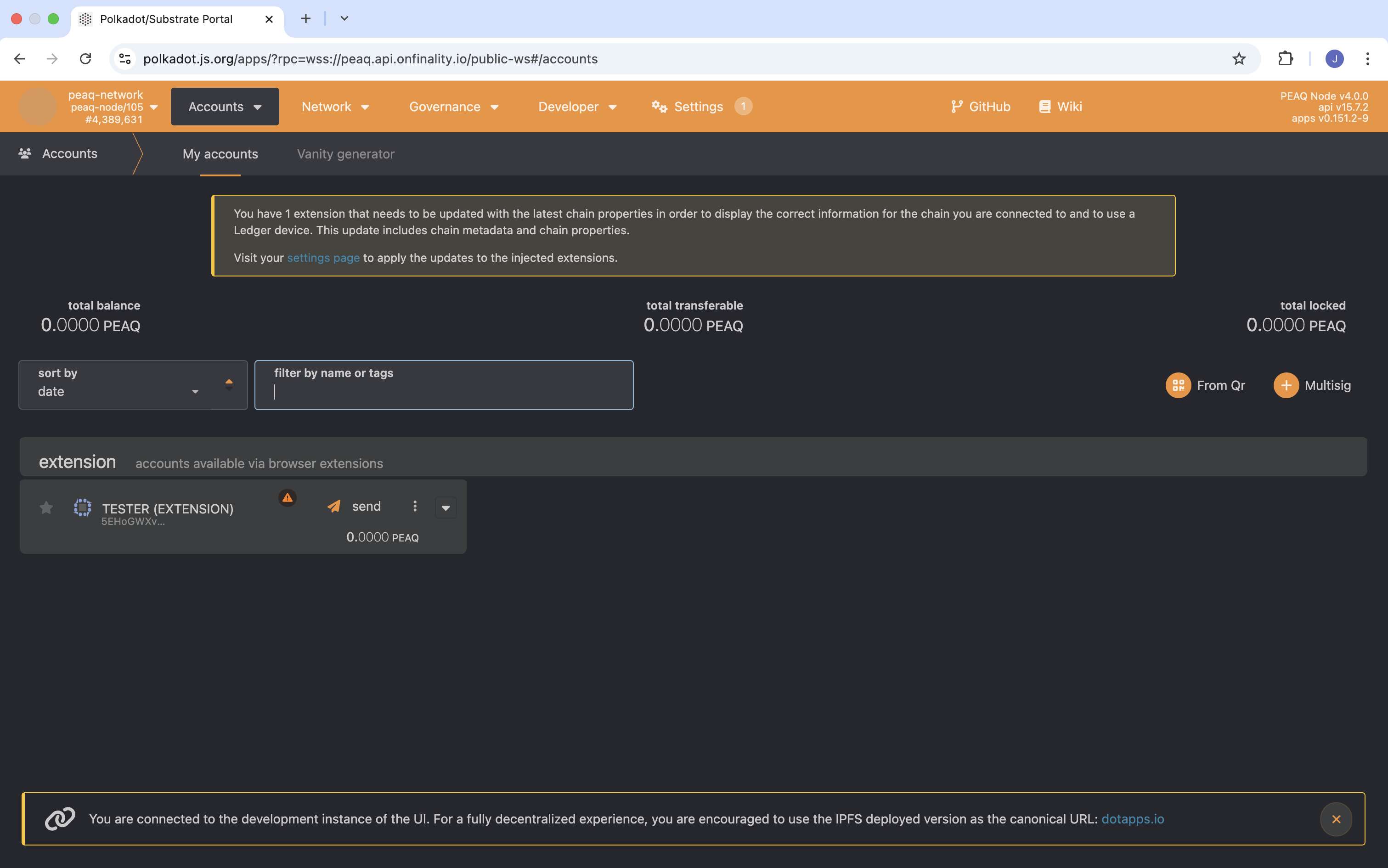
If you are using a substrate wallet, please click on the [peaq accounts page](https://polkadot.js.org/apps/?rpc=wss://peaq.api.onfinality.io/public-ws#/accounts) or [agung accounts page](https://polkadot.js.org/apps/?rpc=wss://wss-async-agung.peaq.xyz#/accounts) to be routed to the account management dashboard.
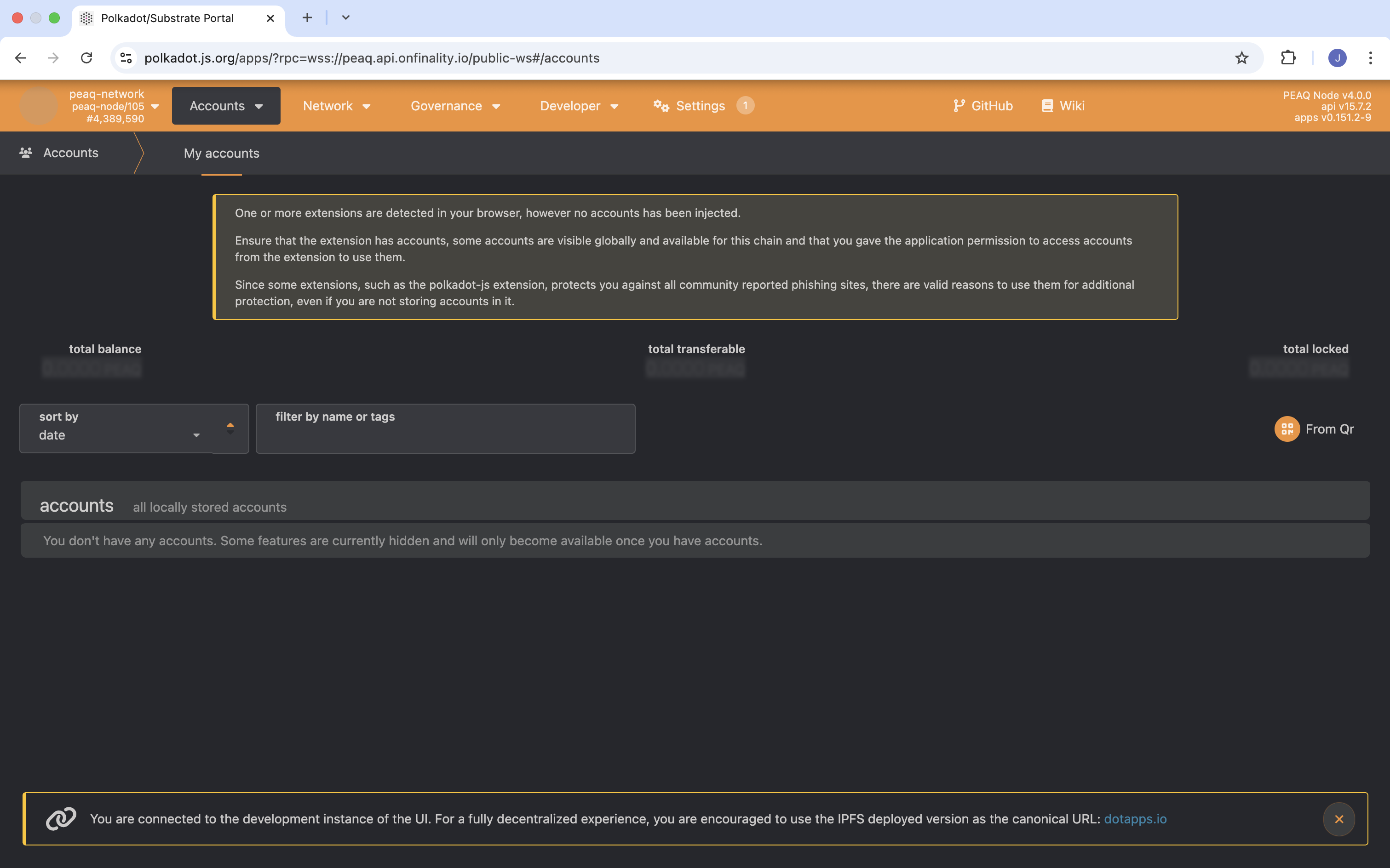
On the top of the page is an extension pane which displays available accounts that are connected. If your wallet is not showing up in this location, first make sure you have the polkadot wallet extension from above downloaded, and a new wallet created. If the issue persists please manually connect the wallet by following the steps below:
1. Go to your extensions and open polkadot{js}
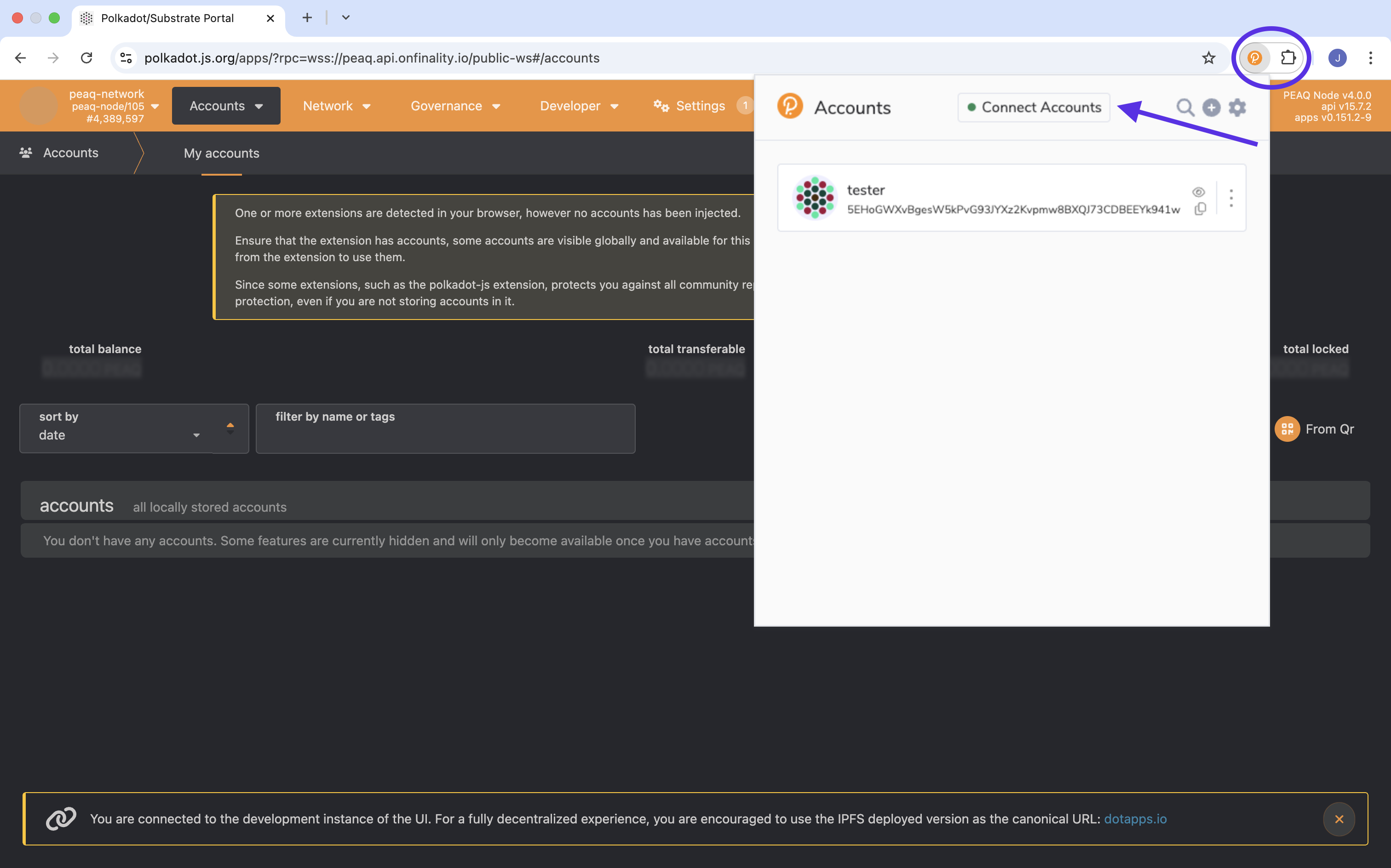
2. Click on the “Connect Accounts” tab on the top of the extension
3. Next you are able to manually select which wallets you would like to appear in this pane on the accounts page.
4. Then click connect and the wallets will appear!
 2. Click on the “Connect Accounts” tab on the top of the extension
 3. Next you are able to manually select which wallets you would like to appear in this pane on the accounts page.
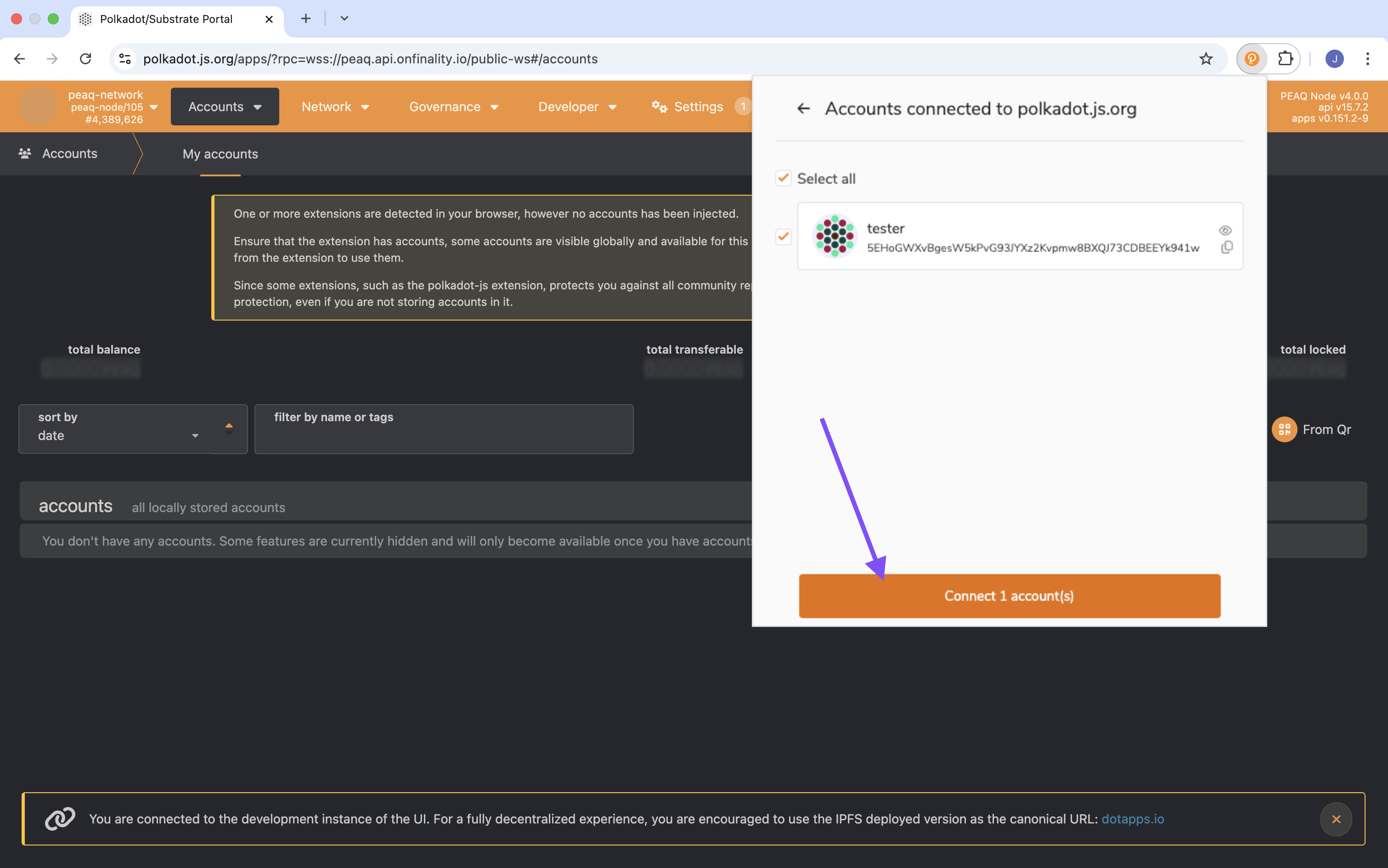 4. Then click connect and the wallets will appear!